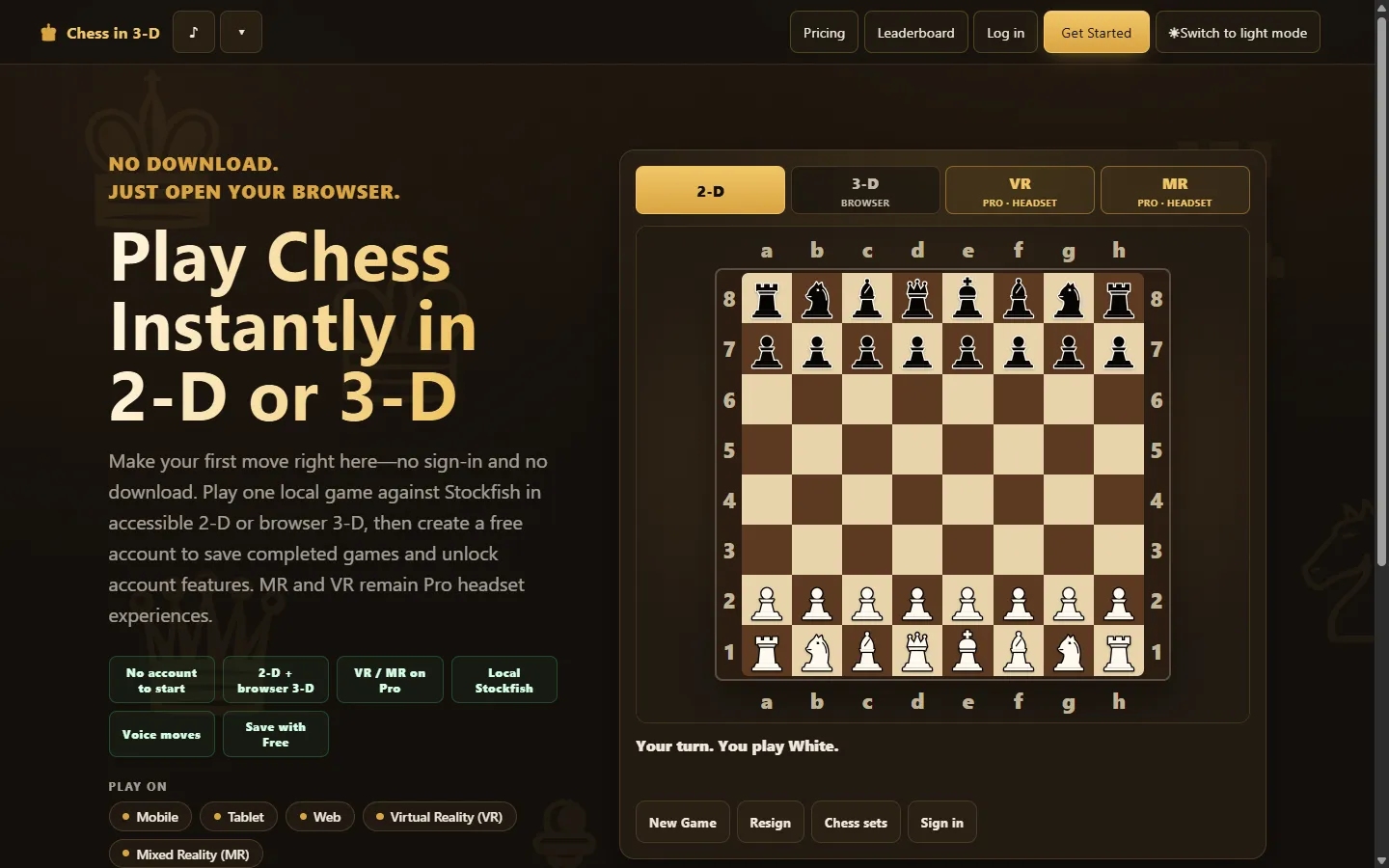
Open the board and choose a view
Open the official game and select Play now to jump to the board. Choose 2-D if you want to read ranks and files at a glance. Choose 3-D Browser if you prefer a dimensional board. Both are browser views for the local game.
Wait for the board to say it is ready. The message under the board tells you whose turn it is and which colour you play.
Make a move and let Stockfish reply
On the starting board as White, select the pawn on e2, then select e4. This is one legal opening move and gives the pawn a clear path into the centre. Wait for the computer to reply before selecting your next piece.
If you lose track of the squares, use 2-D and check the file letters and rank numbers around the board. Read the turn message before assuming the board is waiting for you.
Know what the guest session includes
A guest can start one local game against Stockfish without signing in. The live game explains the current guest limit. It offers a free account to save completed games and unlock account features.
Use New Game to see the available options when you are ready to start over. If your goal is to play with a friend or keep game history, check the account and online play options before starting that session.